Using Net Rates: Get 20% Commission on Your Bookings.
No coding, no difficult connections, no technical difficulties, no requesting space. Just book and getting paid.
So how does this work?
This is a net rate setup. That means that we sell the tour to you at a discounted rate, and you sell it to your client at the retail price.
The same way a grocery store might buy an apple for $1.00 and sell it for $2.49. Many net rate setups involve lots of middle-men and result in lower commissions for you. We make it easy for you to do business directly with us.
That means you get a higher commission, better customer service, better cancellation policies, and more hands-on help when you need it. Pretty sweet, eh?
When you fill out the form below, we’ll respond in 18 hours or less (usually much less) with a unique discount code for you that’s set to 20% off. If we take more than 18 hours to send you the code, we’ll give you 25% off instead. Forever.
This will allow you to book any tour at any time on our website and get 20% off the retail price. When you invoice your clients, charge them the full retail price (listed on our website) of the tour and you make 20% on the sale. I’ll go through how to do all of this in more detail below, but for now fill out the form and let’s get rolling!
Net Rate Form


Frequently Asked Questions
-
Make the booking like you normally would on our website, but input your Reseller Code when booking and pay with yours or your company’s payment method. Use your client’s name and phone number, but your email. It’s that simple.
If you’re still confused, I understand. Technology is full of little gremlins that are trying to make your day difficult. To fight those gremlins, there’s a ridiculously detailed step by step description of how to book below this “Frequently Asked Questions” section that will answer any confusions you have around that. In fact, it’s so detailed that it makes it look much harder than it actually is.
-
We don’t pay you directly in this type of affiliate relationship. Instead, you input your code and get a discount on our tour price, then invoice your client for the full amount.
Example: Let’s say you have a family of four adults who want a Wilderness Wonders Tour. At $199/person, that total is $796. You make the booking, and your Reseller Code saves you 20%, so you only pay $636.80. You pay this with your payment method, not your client’s.
Next, invoice your client for the cost of the tour. The easiest way to do this is to save their card on file and charge it for the full amount ($796) whenever you book a tour. That leaves you with the remainder of $159.20. That’s pure profit, baby!
-
Don’t wait! Give us a call and we can get the tour booked as a one-off at the same discount, even before you have your official Reseller Code. Or book it online and give us a call afterwards so we can refund you the 20%.
Lastly, we are very quick to set this stuff up, so you shouldn’t be waiting for long.
-
Just send us an email or give us a call letting us know and we’ll get them canceled right away. The payment you made to us from your card will be refunded immediately.
Our cancellation policy is a full refund on any cancellations made before the the guide arrives to pick up the client.
With that said, we honor your cancellation policy. If yours is further out, we will default to that if you prefer.
So you have your code…What now?
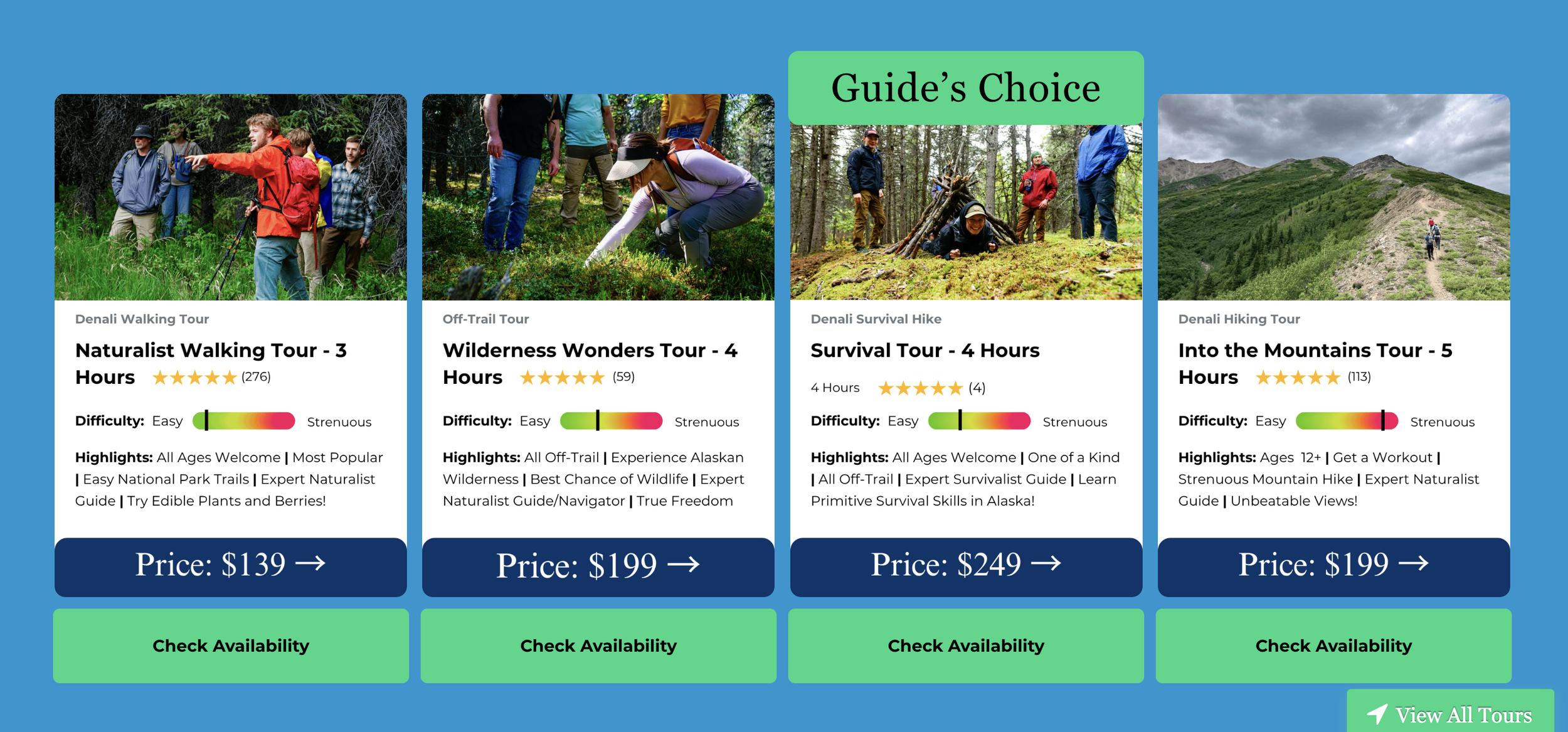
Go to www.northernepics.com/tours and pick one of the options there. Or click the image. Or pick from our homepage. Or click the “View All Tours” button at the bottom of the screen. It doesn’t matter how you get there, but once you’ve picked a tour you’re on to step two!
Step One: Select the tour you want for your clients.
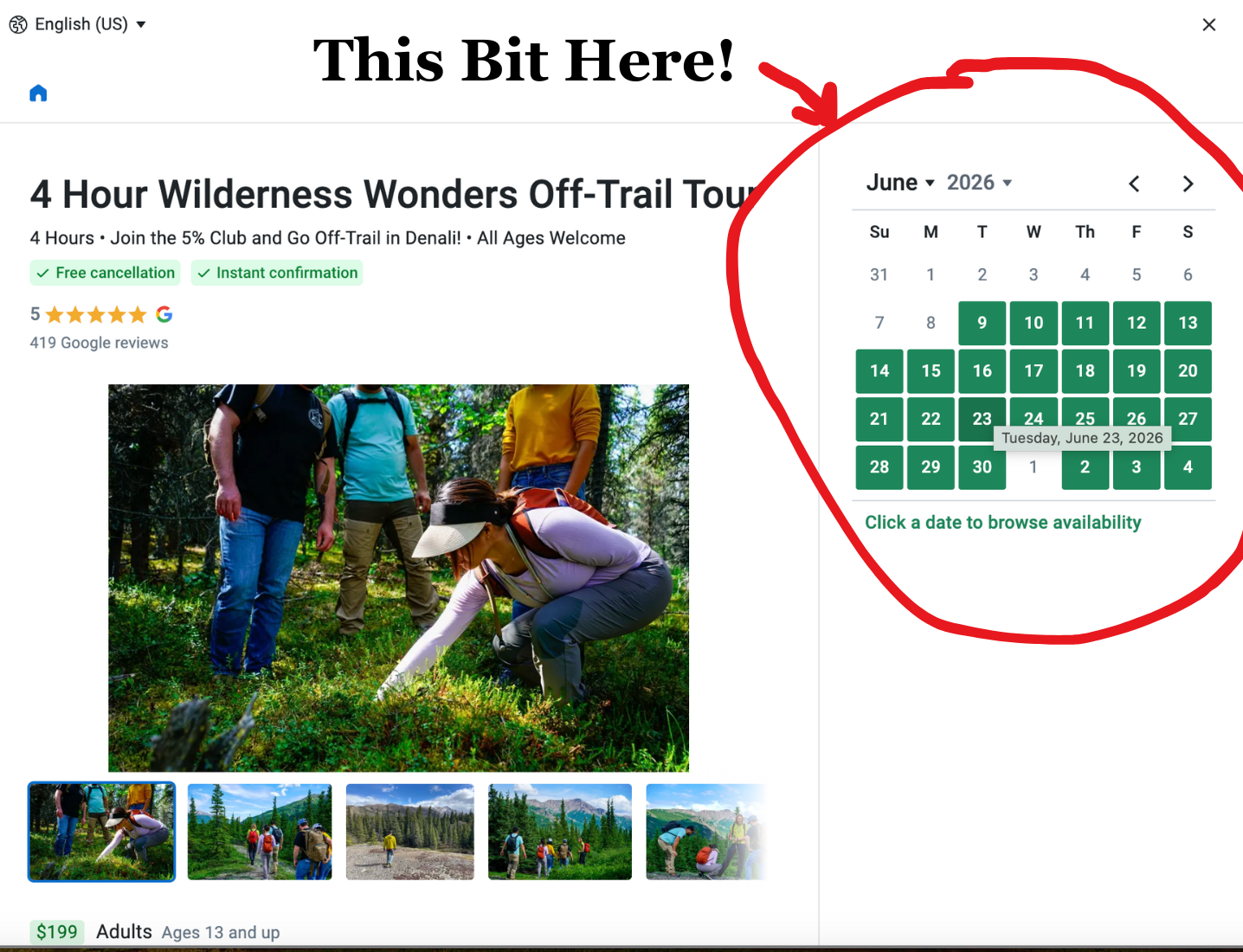
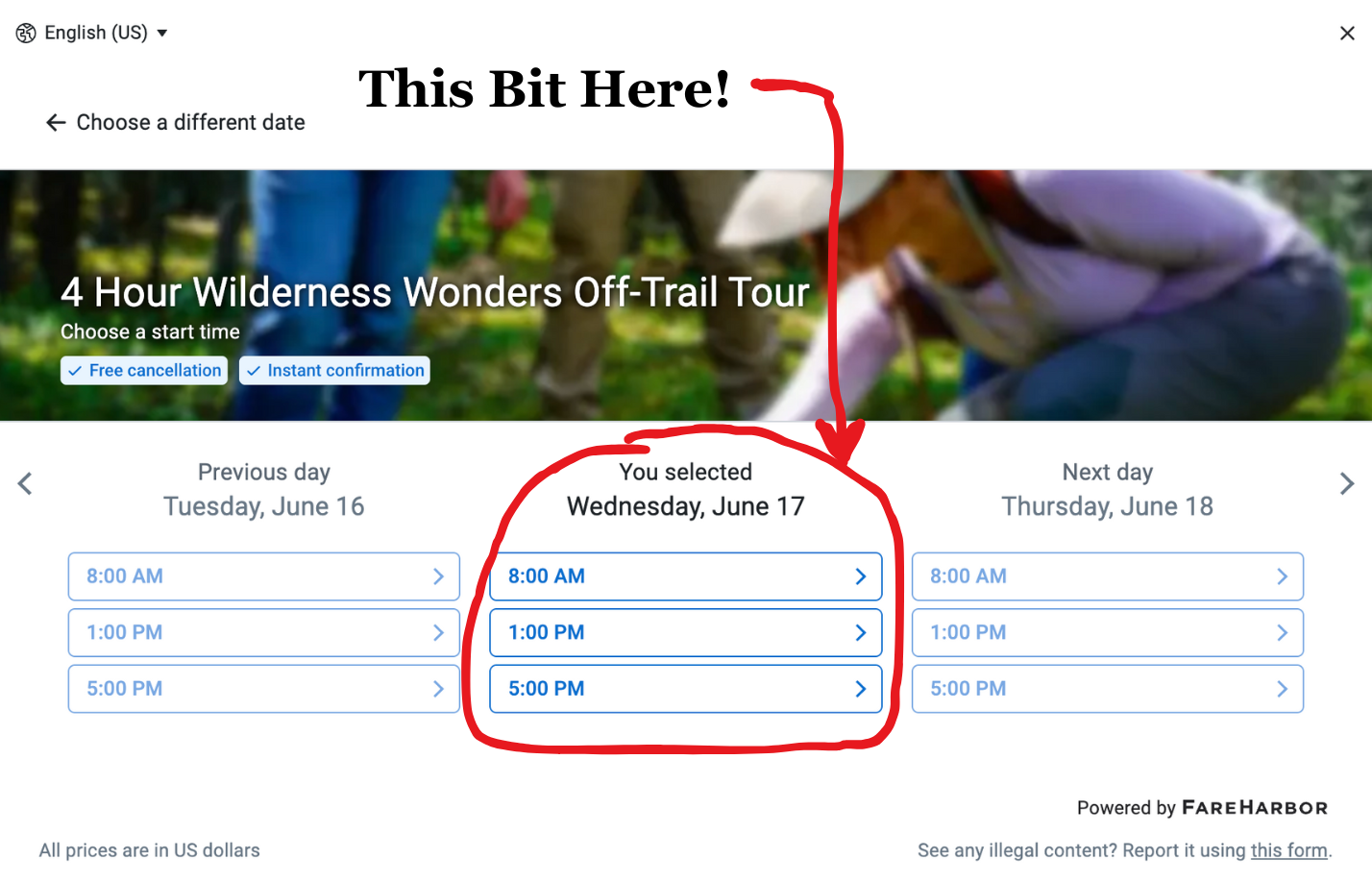
Step Two: Pick the date and time.
Select the date from the calendar, then select the start time you’re looking for. If you’d like a start time that isn’t listed and your clients are interested in a private tour, give us a call at (907) 687-2070 and we can get them booked for whenever you’d like!
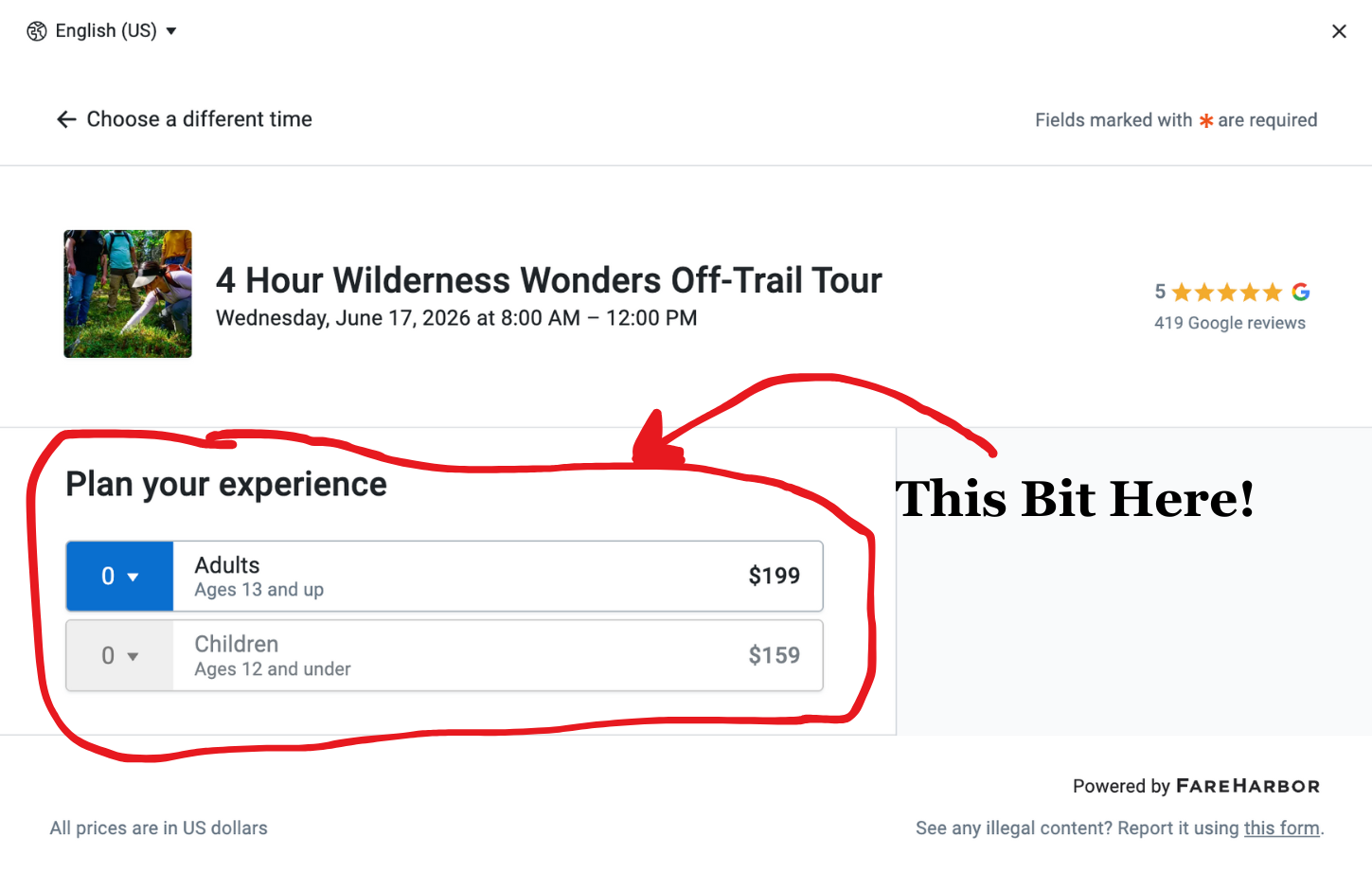
Step Three: Select the tour you want for your clients.
Select the number of adults in your party, then the number of children. You will not be able to select a child until you have at least one adult selected. The rest of the information will show up once you have customers selected.
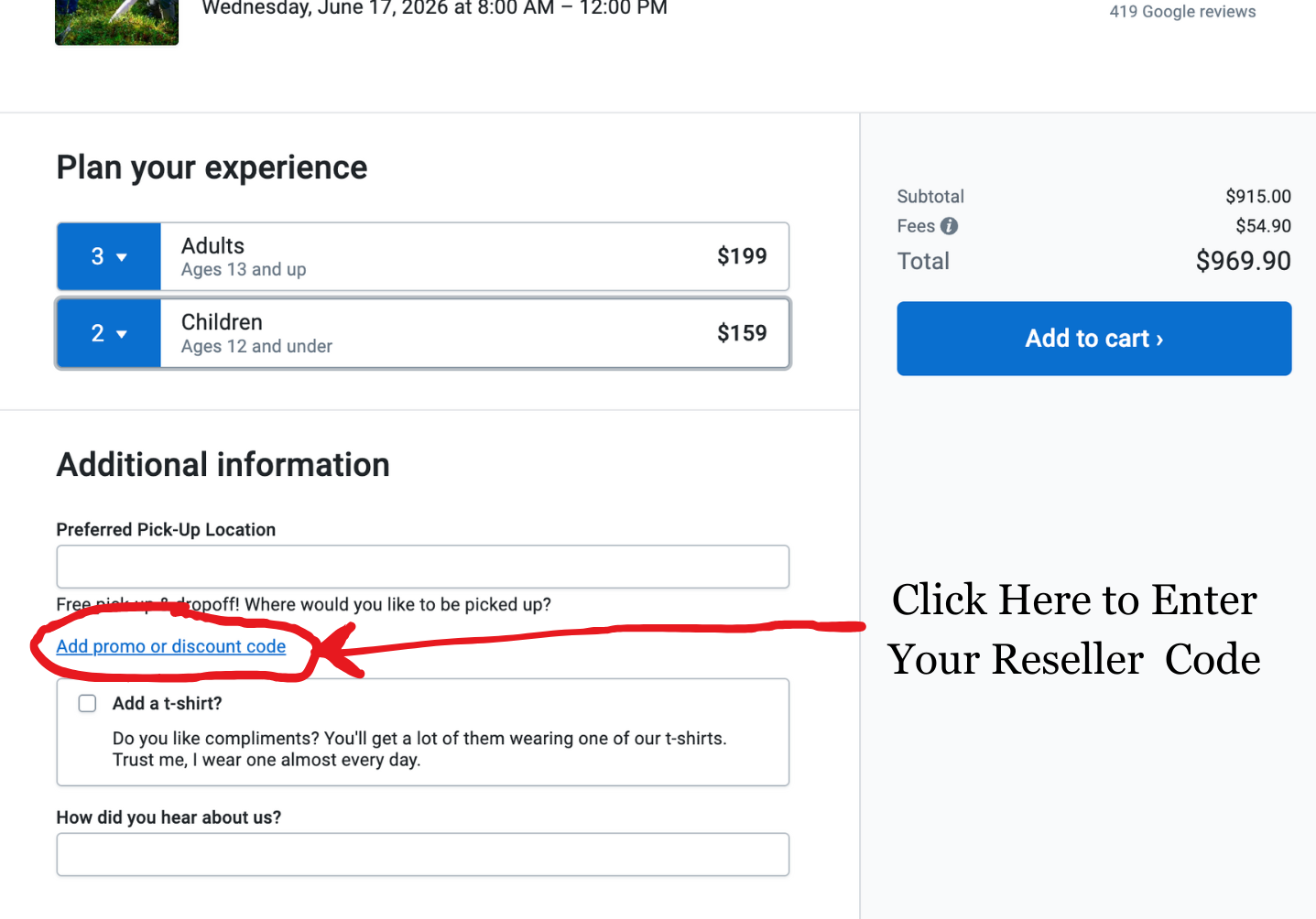
Step Four: Add your reseller code.
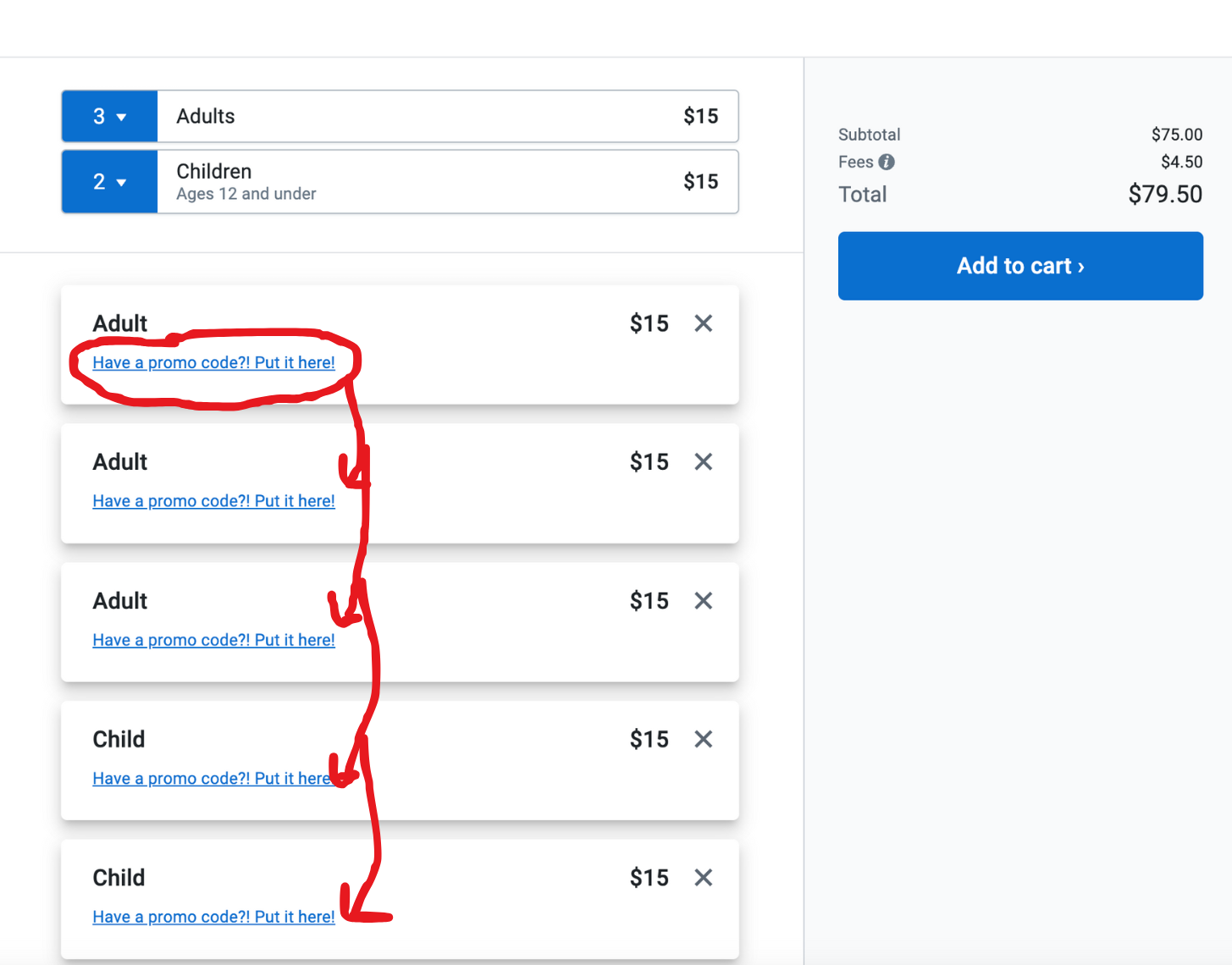
This one is a little bit tricky, and it’s the most common place that folks get tripped up. You’ll have to click the little blue link highlighted by the red circle. This will open the Promo Code field, which is where you’ll add your reseller code!
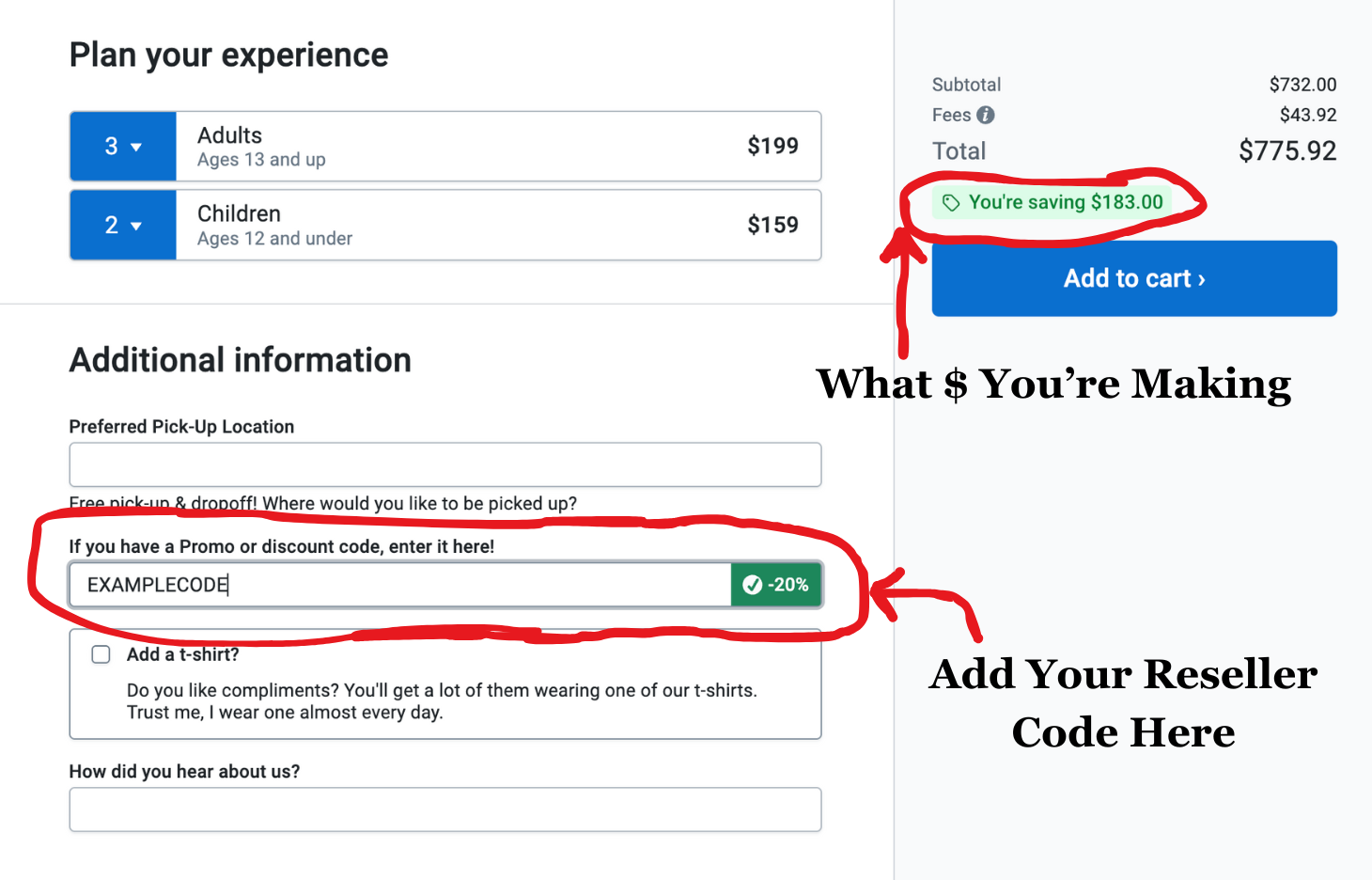
Step Five: Type Code
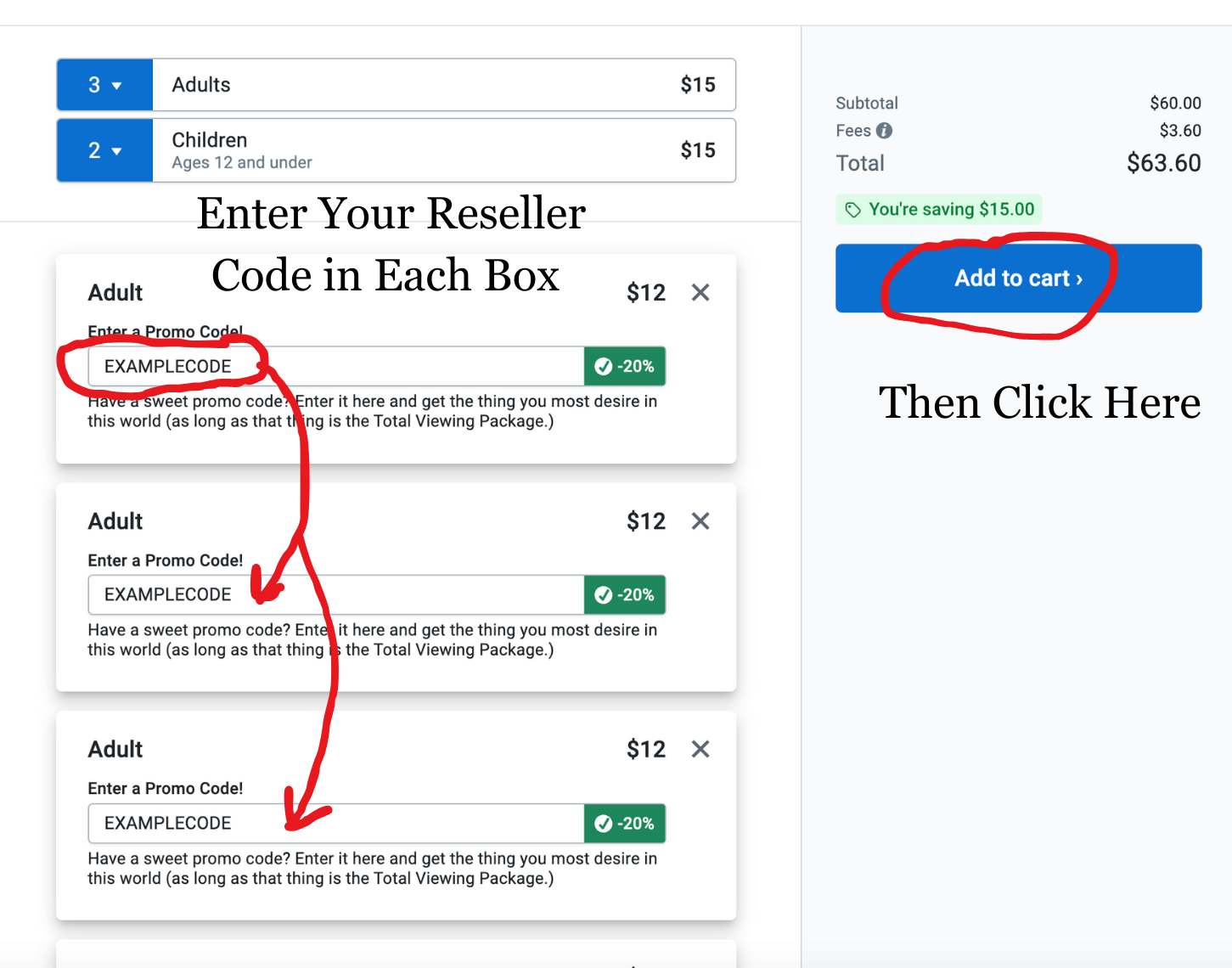
Type in the reseller code we gave you. The right side of the field will show the discount applied. You’ll see the savings you’re getting below the the Total. This is the amount you’re getting for booking the tour with us! Finally, click “Add to cart” and move to the next step!
Step Six: Add Total Viewing Package?
This is an optional upgrade for guests on the tour. You can use the same reseller code to get 20% off these as well. You’ll be renting a monocular and a magnifying glass, allowing your guests to see both what’s up close, and what’s far away. If this is something you think your guests will like, or you want more information, click “Continue”. If not, click “No thanks”, then “Continue” and skip to step 9.
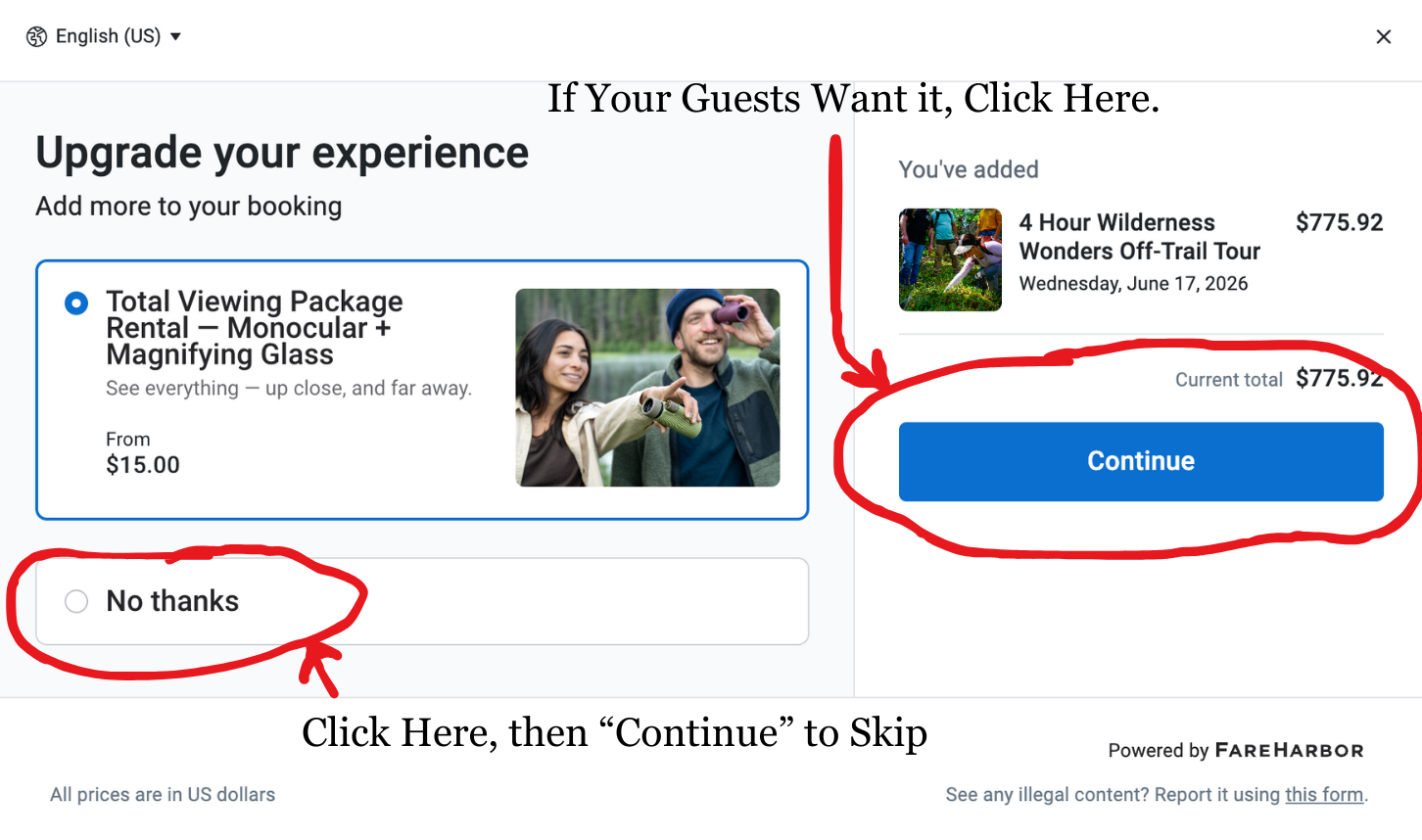
Step Seven: Read More and Continue
If you want more information about the Total Viewing Package Rental, here’s where you can find it. Scroll down to read the details about both the magnifying glass and monocular. And yes, you can rent just one for your group to share. Only rent multiple if they each want their own. Or, if you already know your clients want it, click “Buy Now” to continue.
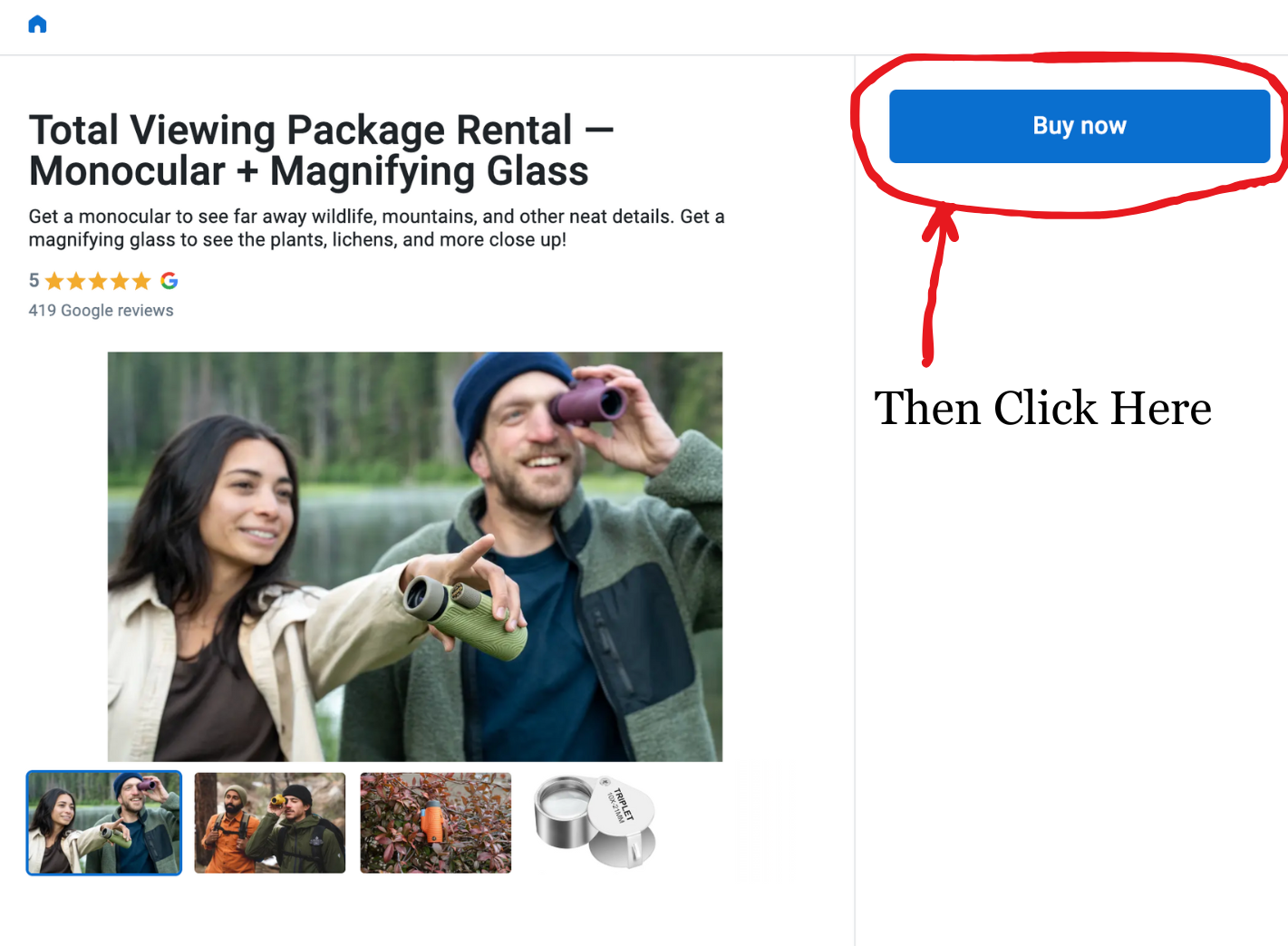
Step Eight: Add Your Reseller Code Again.
Just like the first time, you’ll click the blue link to add your reseller code. You’ll only need to click the link once to open the code field for each customer, but you’ll need to input the code for each one separately. Finally, click “Add to cart” again and continue to the last page.
Step Nine: Fill in Your Client’s Information and Your Payment.
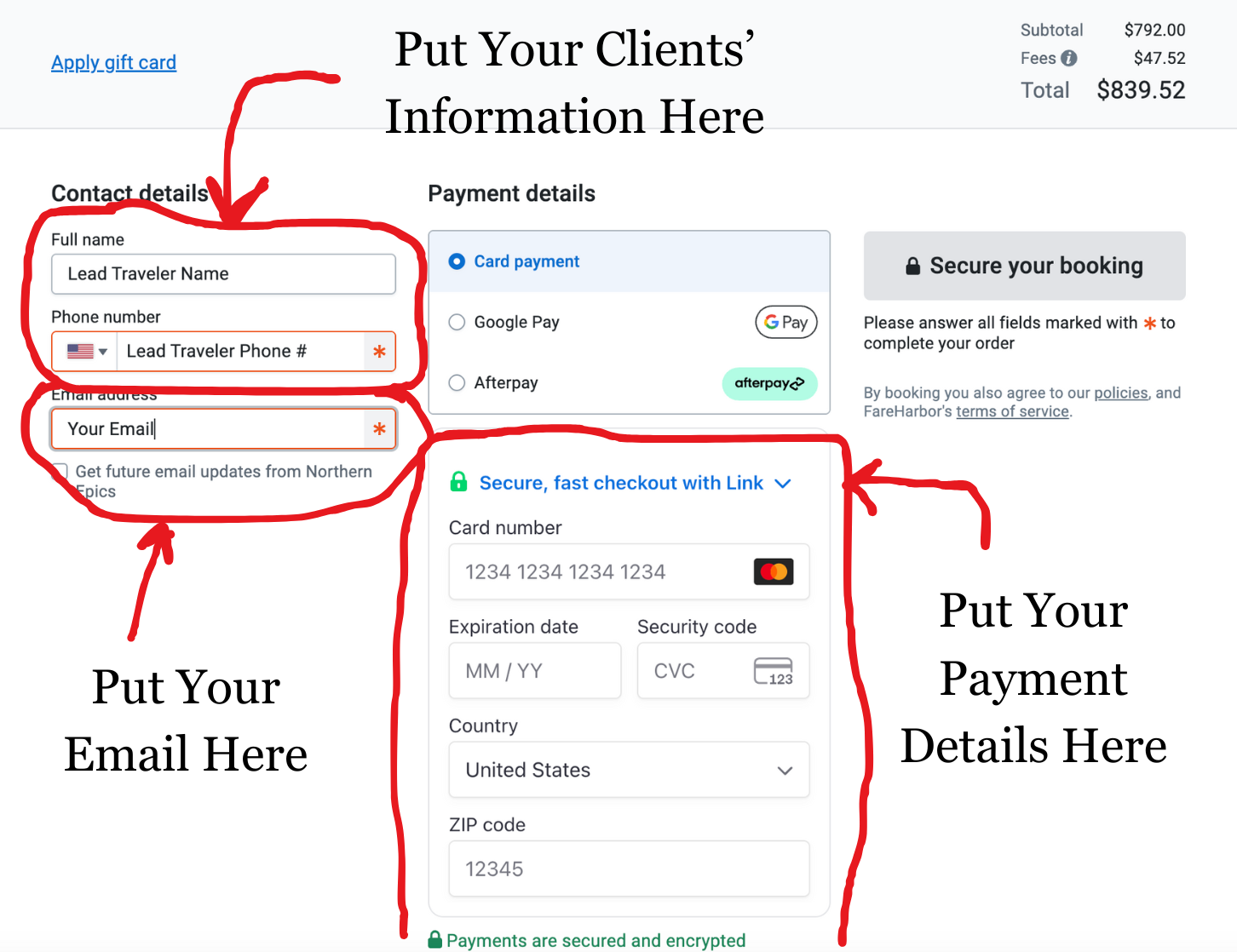
Even though you’re making the booking, we need your client’s information. Put in their name and phone number if possible so we have the proper contact details for them. We do not use this for marketing, only for enhancing their experience through clear and timely communication. Enter the email that you would like the receipt/confirmation email sent to (in most cases this should be your email).
Then fill in your payment details (remember, you should charge this to your card, then invoice the full retail amount to your client). If you charge your client’s card instead, it would be like a grocery store ordering apples for you from their wholesaler and charging your card at $1.00 per apple instead of $2.49. You’d be pretty stoked, but it wouldn’t be good for the grocery store. You’re the grocery store in this analogy.
Finally, click “Secure your booking” and you’re done!